

Directory sync is available on organizations. Only organization owners and admins can set it up.
Before you start
Cal.com only provisions users whose email address is on your organization’s verified domain (or a verified secondary domain). Make sure every user you plan to assign has their Email (mail) attribute filled in with an address on that domain.
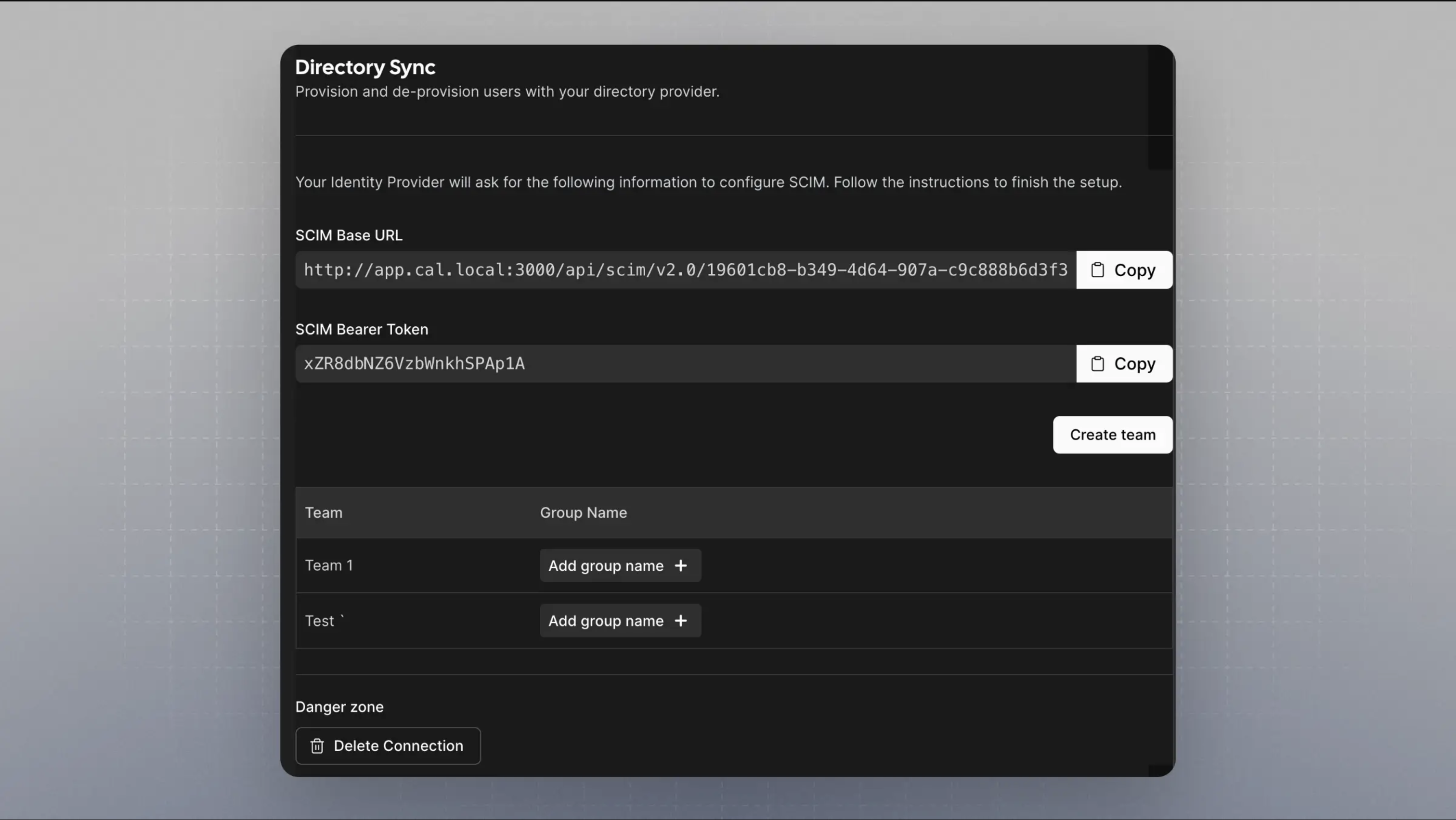
1. Create the directory in Cal.com
- Go to Settings → Organization → Directory Sync (
/settings/organizations/dsync) and click Configure.
- Enter a Directory Name (for example “Entra ID”), choose Azure SCIM v2.0 as the Directory Provider, and click Save.
- Copy the SCIM Base URL and the SCIM Bearer Token. You’ll paste them into Entra in the next section.
2. Connect Microsoft Entra ID
- In the Microsoft Entra admin center, go to Enterprise applications → New application → Create your own application.
- Name the app (for example “Cal.com”), choose Integrate any other application you don’t find in the gallery (Non-gallery), and click Create.
- Open the app, go to Provisioning, and set Provisioning Mode to Automatic.
- Under Admin Credentials, paste the SCIM Base URL into Tenant URL and the SCIM Bearer Token into Secret Token. Click Test Connection, then Save.
-
Under Mappings, open Provision Microsoft Entra ID Users and make sure these attributes are mapped:
userNameactivedisplayNameemails[type eq "work"].valuename.givenNamename.familyName
active, because Entra uses it to tell Cal.com when a user is unassigned or disabled. - Under Settings, set Scope to Sync only assigned users and groups.
- Go to Users and groups and assign the users and groups you want to provision.
- Back on Provisioning, set Provisioning Status to On and click Save.
What happens when users sync
- Assigned users are added to your organization and get an email inviting them to Cal.com. Users who already have a Cal.com account are moved into the organization.
- Unassigned or disabled users are removed from your organization.
Mapping Entra groups to Cal.com teams
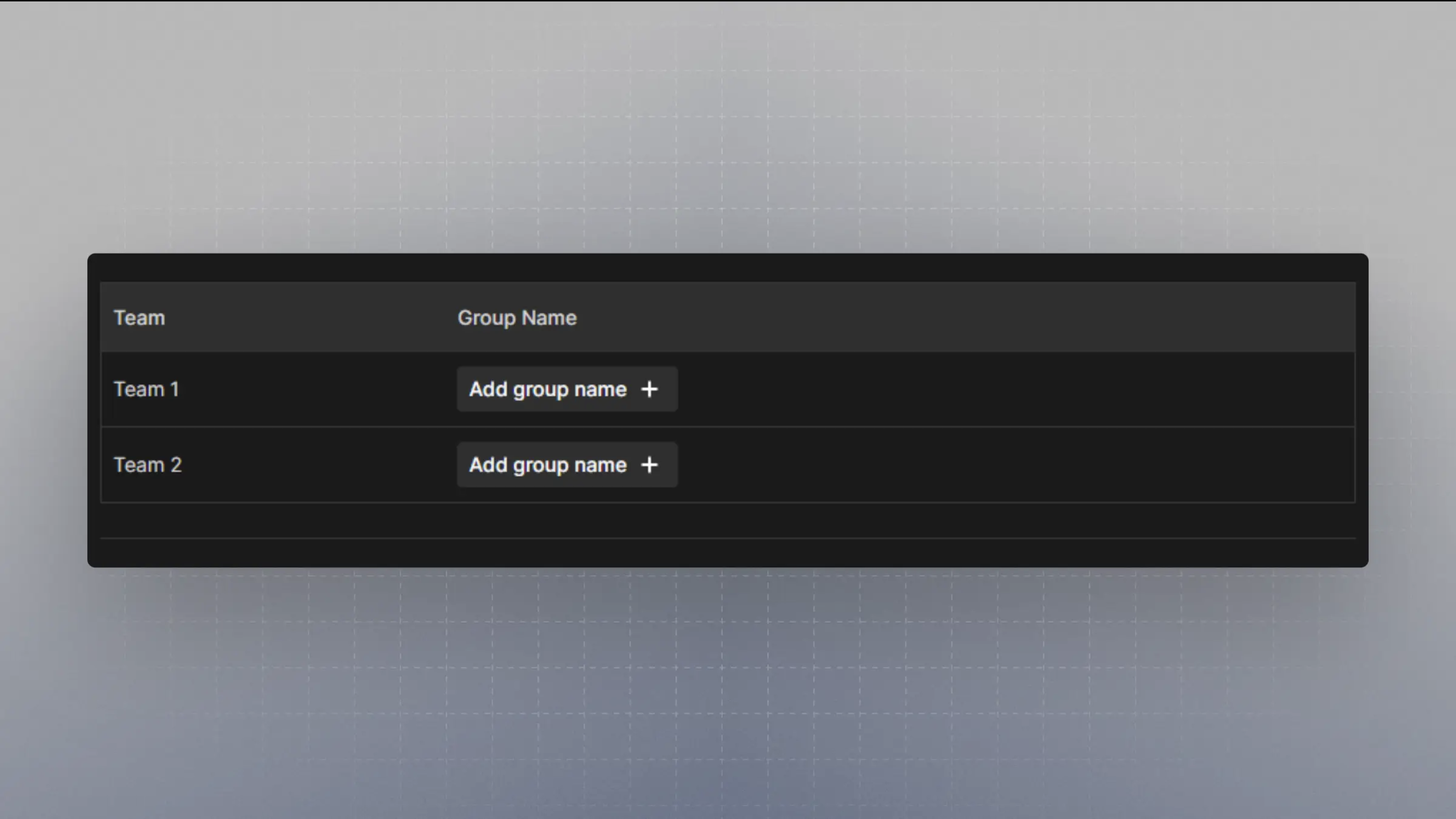
You can map an Entra group to a team in your organization. When Entra pushes the group, its members are added to that team automatically. On/settings/organizations/dsync, find the team in the table and click Add group name. Enter the group name exactly as it appears in Entra.
Troubleshooting
- A user isn’t provisioned. Check that the user’s Email (
mail) attribute in Entra is filled in and on your verified domain. If it’s empty, Entra sends the user principal name instead, and an address likename@yourtenant.onmicrosoft.comis rejected. The app’s Provisioning logs in Entra show the error for each user. - Test Connection fails. Copy the SCIM Base URL and Bearer Token again from
/settings/organizations/dsync, and make sure there are no extra spaces. - Group members aren’t added to a team. Check that the group name on the Directory Sync page matches the Entra group name exactly, and that the group is assigned to the app.