

When to use it
Use holidays when you want bookings to be blocked on national or public holidays without managing each date manually. Common use cases:- Solo users who close their calendar on national holidays
- Teams that want to standardise time off around public holidays
- Anyone who wants holidays kept up to date year over year without manual edits
Set your country
- Go to Settings → My account → Out of office.
- Open the Holidays tab.
- In the Personal holidays card, open Select country and pick your country. Use the search box to filter the list.
Enable or disable individual holidays
Each holiday has a switch next to it. Turn it off to allow bookings on that day, or back on to block it. Changes save immediately. This is useful if you observe most national holidays but still work on a few of them — for example, keeping Black Friday open while blocking Thanksgiving.Booking conflict warnings
If you select a country (or change countries) and there are existing confirmed bookings that fall on the newly enabled holidays, a warning appears at the top of the page listing the affected holidays and the number of bookings on each. Existing bookings are not cancelled automatically — review the warning and reschedule or cancel any that conflict with your new holiday settings.Change or clear your country
- To switch countries, open the country dropdown and pick a new one. The previous country’s holidays are removed and replaced.
- To stop blocking holidays entirely, open the country dropdown and select Clear.
Organization holidays
Organization owners and admins can connect one company holiday calendar, for example from Justworks or any HR or calendar tool that offers an ICS subscription link. Its holidays block availability for every current and future member of the organization, so no one has to set anything up themselves.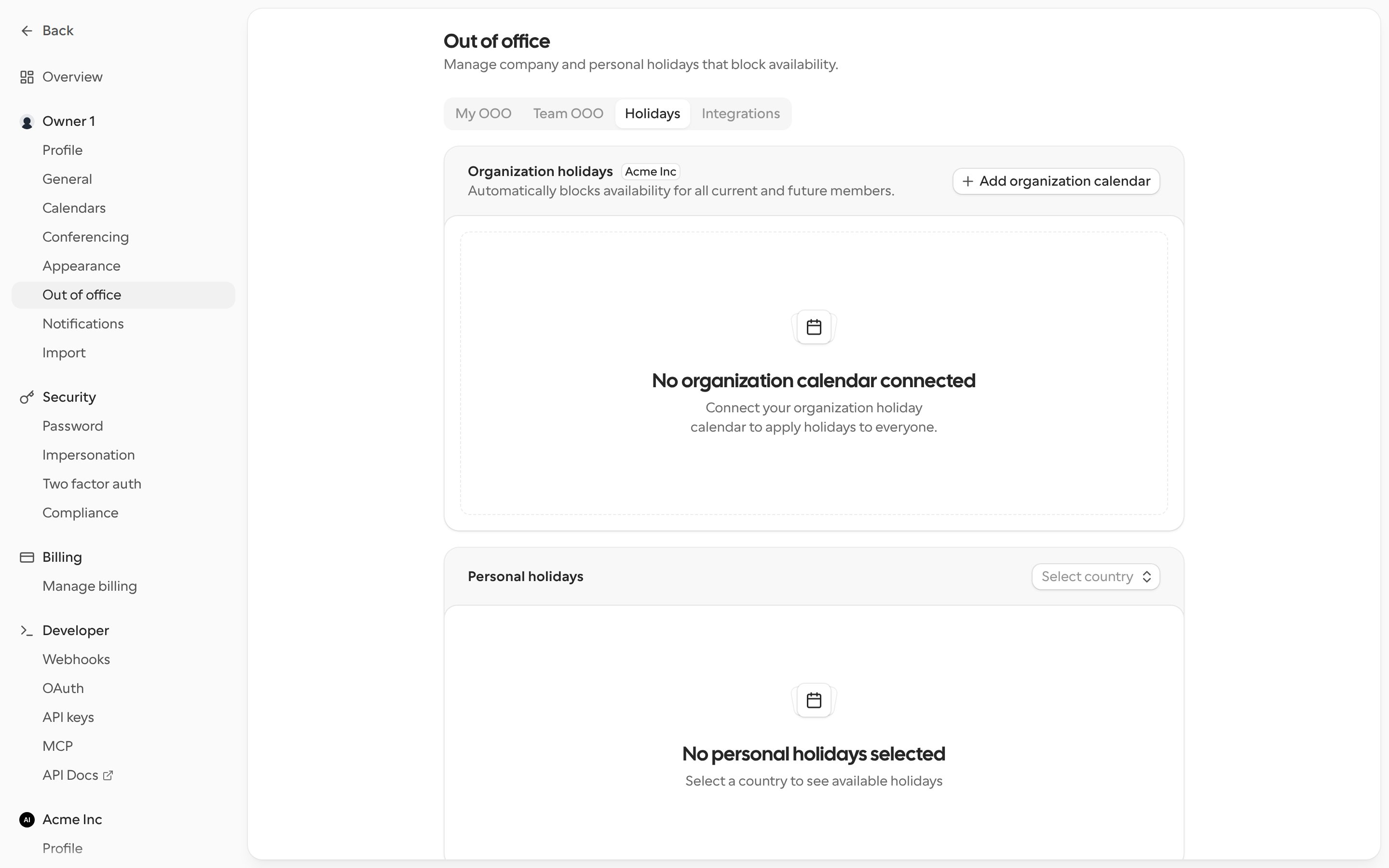
Connect a holiday calendar
- Go to Settings → My account → Out of office and open the Holidays tab.
- In the Organization holidays card, select Add organization calendar.
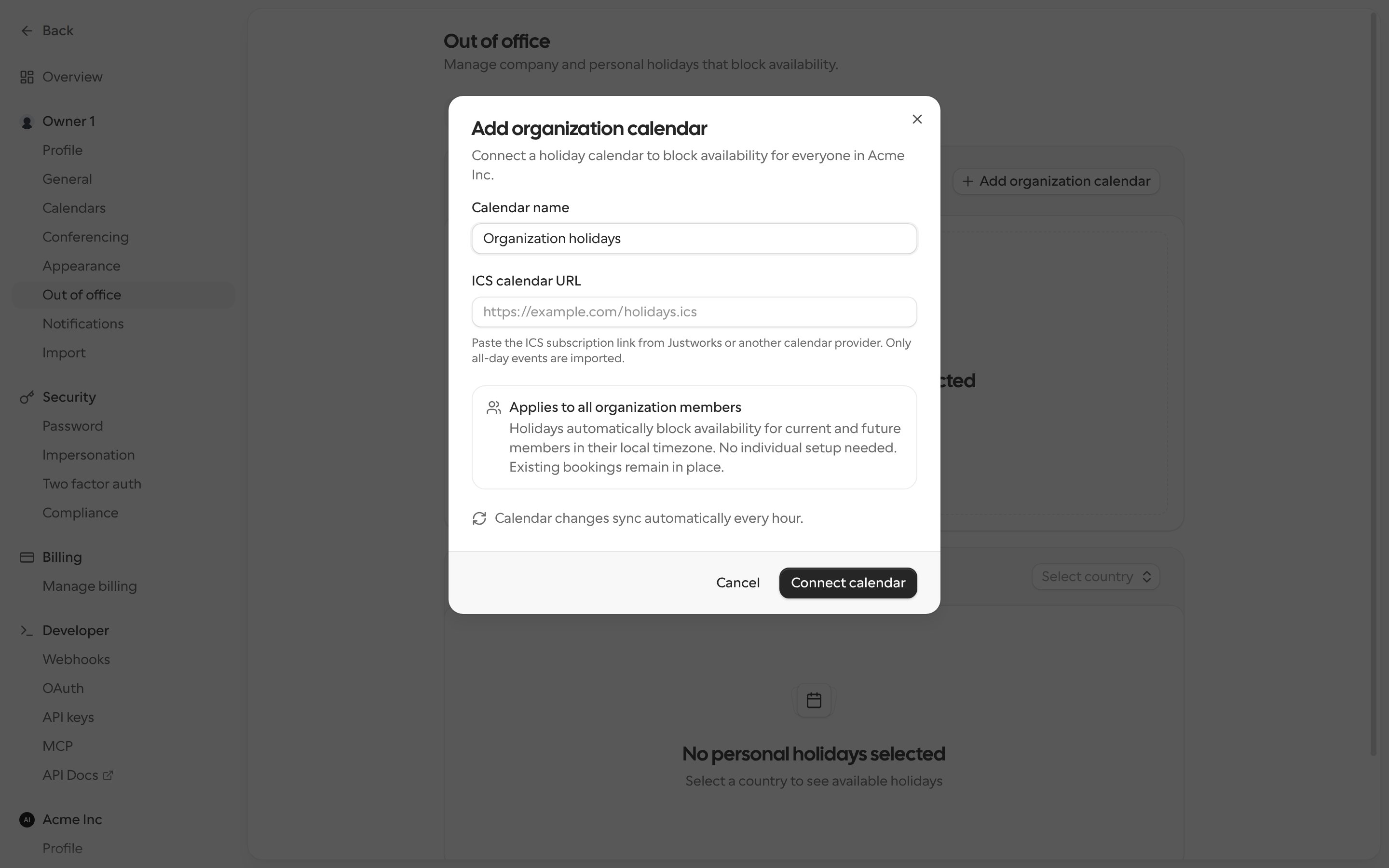
- Give the calendar a name and paste its ICS calendar URL.
https://andwebcal://links both work. For Justworks, paste the ICS subscription link from Justworks. There’s no separate app to install. - Select Connect calendar. Cal.com reads the calendar and lists the upcoming holidays.
How organization holidays work
- Only all-day events are imported. Timed meetings in the calendar are ignored. Multi-day closures and recurring holidays are supported.
- Each holiday blocks the whole day in each member’s own schedule timezone, on personal and team booking links.
- New members get the holidays as soon as they join the organization. Members who leave stop inheriting them.
- Organization holidays apply on top of personal holidays. Turning off a personal holiday, or not choosing a country, doesn’t unblock an organization holiday.
- Changes in the calendar sync automatically every hour. Use Sync now to pull changes right away.
- Existing bookings on a holiday are not cancelled. Reschedule or cancel them as needed.
- If a sync fails, the previously imported holidays keep applying until an owner or admin fixes the calendar link and the next sync succeeds.