

Password
Go to Settings > Security > Password.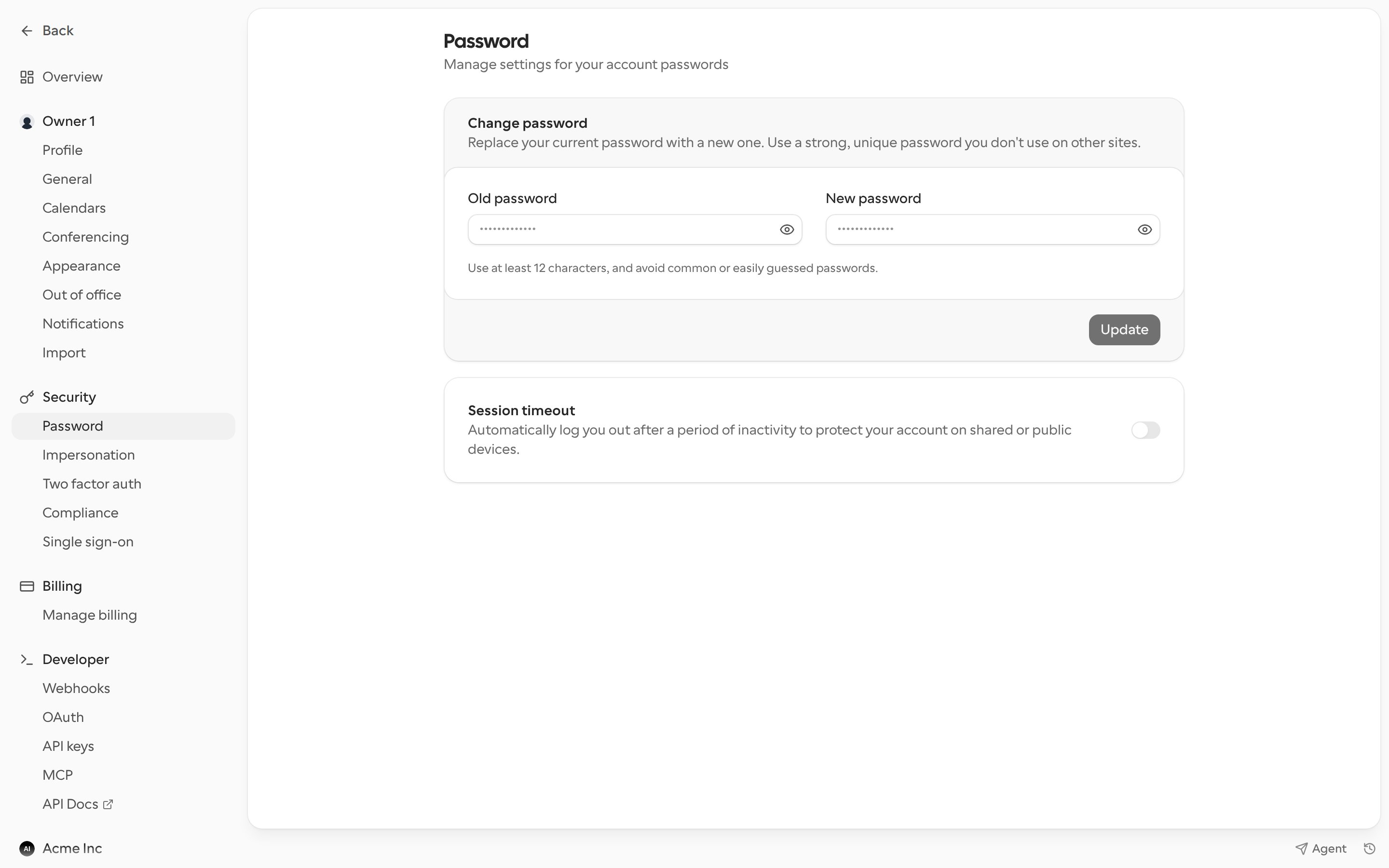
Change your password
Enter your Old password and a New password, then click Update. Use at least 12 characters and avoid common or easily guessed passwords. If you signed up with Google or another sign-in provider and haven’t set a password, this page says your account is managed by that provider. Click Create account password and Cal.com emails you a link to set one.Session timeout
Turn on Session timeout to log out automatically after a period of inactivity. This is useful on shared or public computers. Choose Timeout session after 5, 10 or 15 minutes and click Update.Impersonation
Go to Settings > Security > Impersonation.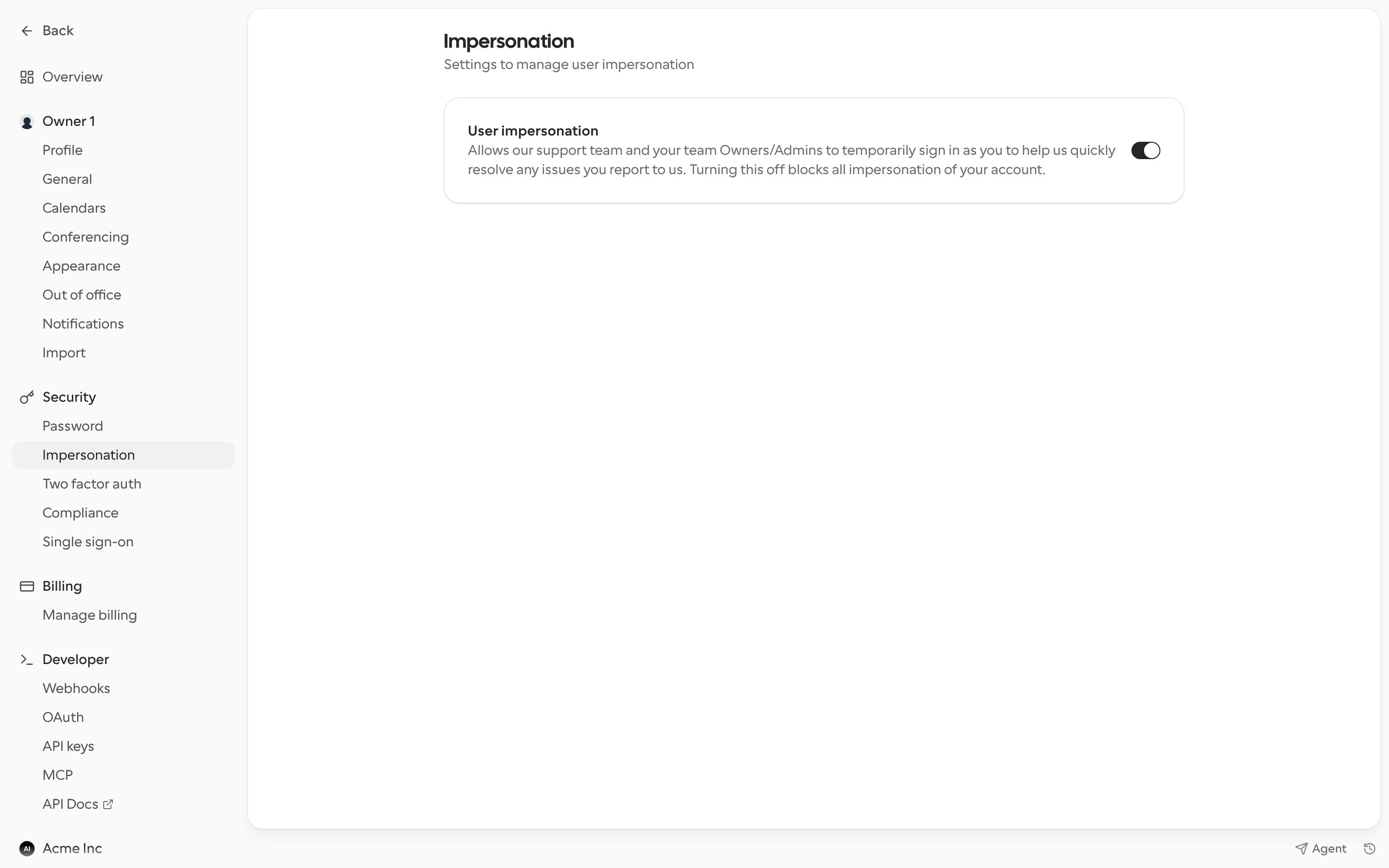
Compliance
Go to Settings > Security > Compliance to download Cal.com’s compliance documents, certifications and data protection agreements. Documents are grouped into Data privacy, Compliance reports and Other documents.- Public documents and the Data Processing Agreement (DPA) are available to everyone.
- Restricted documents, such as compliance reports, are available to members of an organization.
- The first time you download a restricted document, you’re asked to accept a non-disclosure agreement (NDA). You only need to accept it once.