

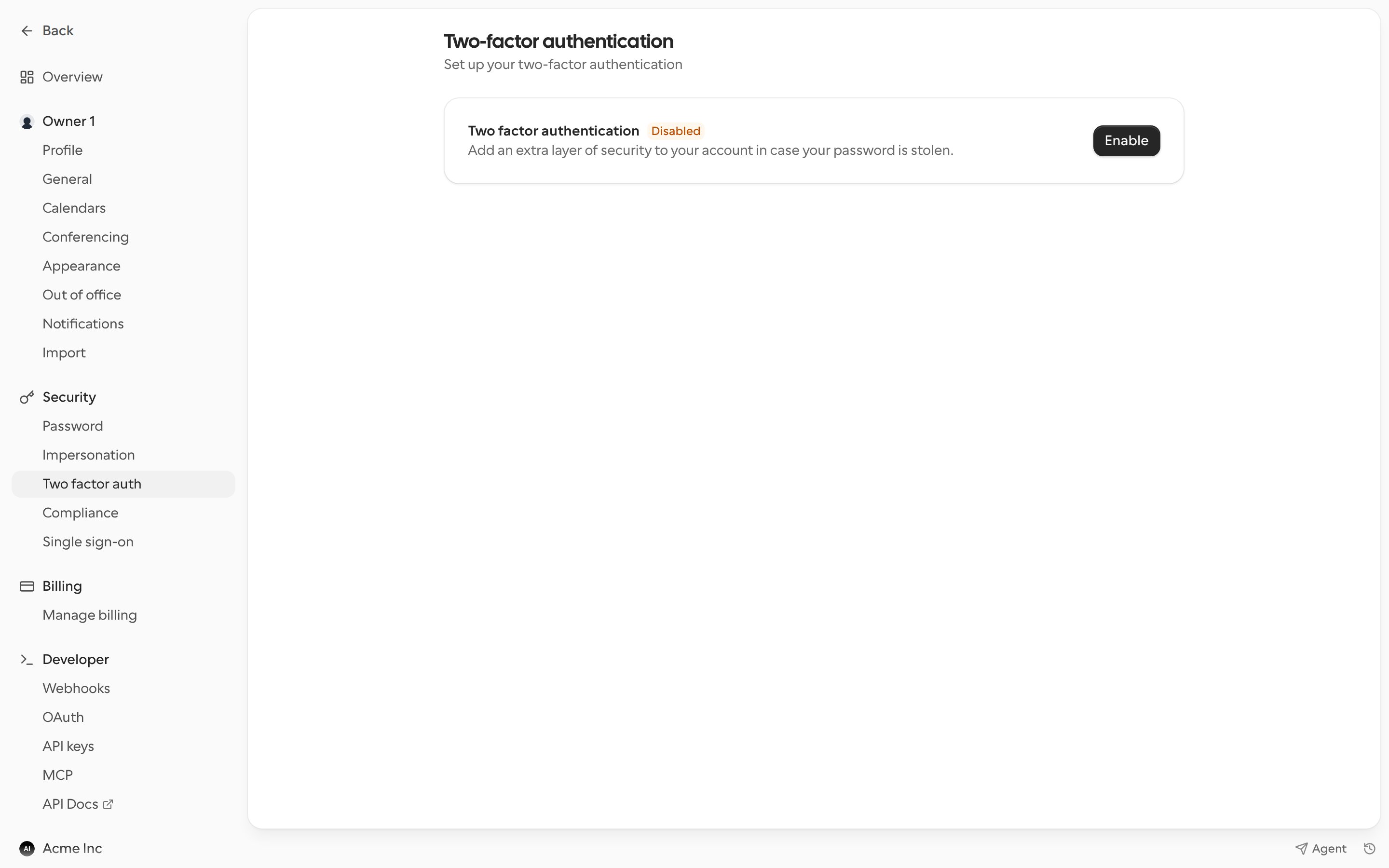
Two-factor authentication (2FA) asks for a six-digit code from an authenticator app, such as Google Authenticator or 1Password, every time you sign in. It keeps your account safe if your password is stolen. Go to Settings > Security > Two factor auth.
Two-factor authentication settings with the Enable button
2FA needs an account password. If you signed up with Google or another sign-in provider and never set a password, click Create account password to go to the Password page and set one first.

Turn on two-factor authentication

  1. Click Enable.
  2. Confirm your current password and click Continue.
  3. Scan the QR code with your authenticator app, or enter the text code manually.
  4. Enter the six-digit code from the app and click Enable.
  5. Save your Backup codes. Click Copy or Download and keep them somewhere safe.
Each backup code works once and lets you sign in without your authenticator app.

Turn off two-factor authentication

  1. Click Disable.
  2. Enter your password and the six-digit code from your authenticator app.
  3. Click Disable.
If you no longer have your authenticator app, click Lost access and enter one of your backup codes instead. We recommend turning 2FA back on as soon as you can.

Signing in with 2FA

After you enter your email and password, Cal.com asks for your Two-factor code. If you don’t have your phone, use a backup code. Repeated wrong codes count toward account lockout.