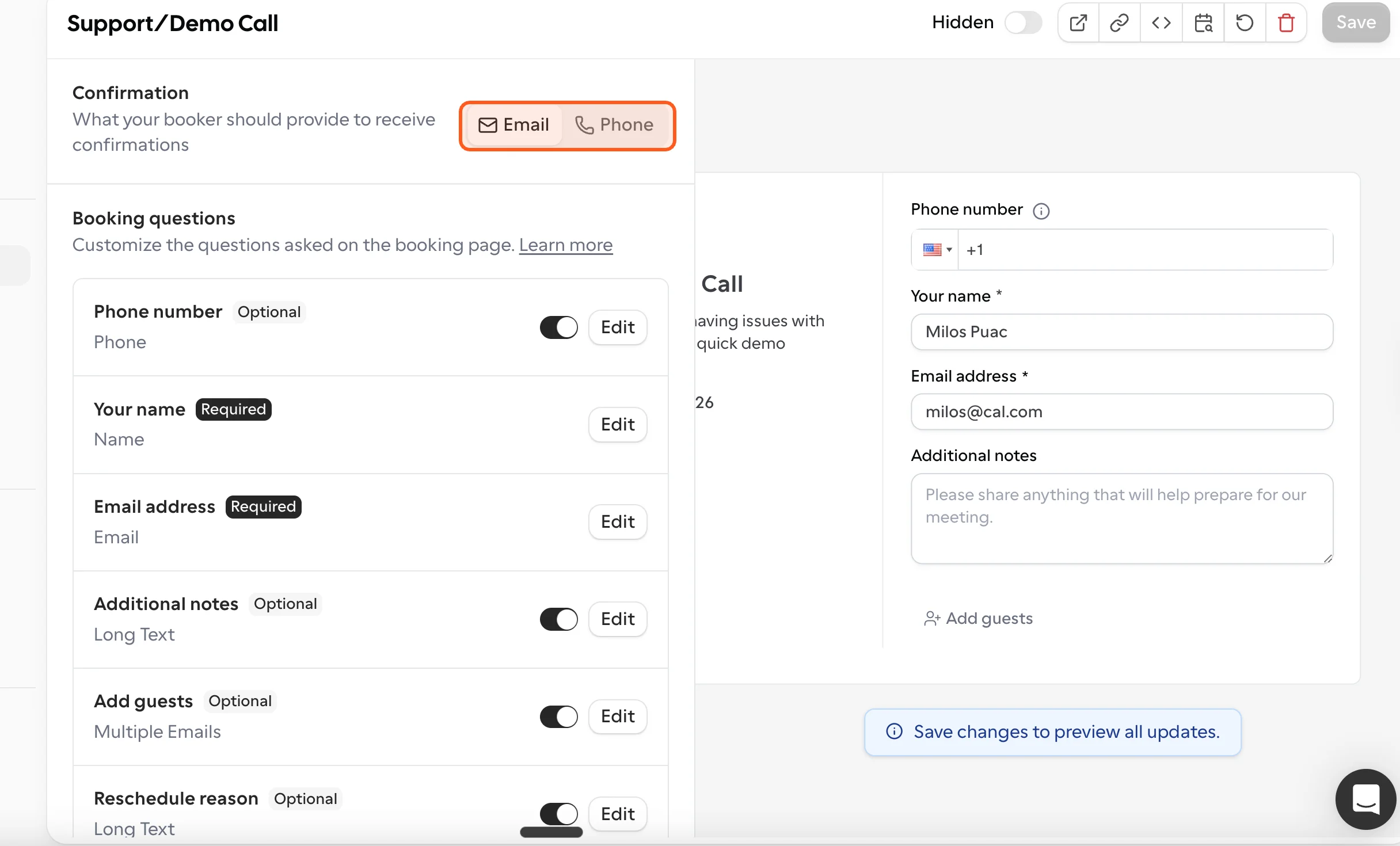
When you create a new link, a few basic booking questions are already created for your new link.
If you’d like to collect more information about your attendees, you can use our booking questions feature and get the necessary information filled out by your attendees when booking. The booking questions can be either required or optional, depending on your needs.
Let’s say that you require the phone number of each attendee. You must select the correct input type, write up your placeholder and label, and tick the requirement.
A new field will appear on the booking page where attendees enter the booking details.
You can also make use of the booking questions feature to allow prefilling the booking fields
Booking question identifier
Every booking question has an identifier, a unique key that the booker’s answer is saved under. Cal.com uses it to prefill the question from the booking link, in webhook payloads, and to turn the answer into a workflow variable.
Where to find a question’s identifier
- Open the link and go to Booking form.
- Click Edit next to the question.
- The Identifier field is below Label.
When you add a question, the identifier is filled in from the label. Spaces and special characters are replaced with dashes, so “Company size” becomes Company-size. You can type your own identifier instead. Identifiers can contain letters, numbers, dashes and underscores.
The default questions, such as name and email, have fixed identifiers that you can’t change.
Use the identifier as a workflow variable
To add the booker’s answer to a workflow message, write the identifier in uppercase, replace its dashes with underscores, and wrap it in curly brackets. For example, Company-size becomes {COMPANY_SIZE}. See booking question variables for details.
If you change an identifier, update any workflows, prefill links or webhook integrations that use the old one. When you edit a question’s label, its identifier changes with it unless you’ve set the identifier yourself.
Phone-based bookings
By default, the booking form requires an attendee’s email address to confirm a booking. With phone-based bookings, you can require a phone number instead, so attendees can book using only their phone number without providing an email.
This is useful when SMS is your primary channel for confirmations and reminders, when your audience is more likely to share a phone number than an email, or for regions and workflows where phone contact is the standard way to reach attendees.
To enable phone-based bookings, go to the Confirmation section at the top of your link’s booking questions and switch the toggle from Email to Phone. This sets the phone number as the required field your booker must provide to receive confirmations, instead of an email address. Once you’ve selected Phone, click Save.