

Turn on seats
- Open the booking link and go to Payments & Seats.
- Turn on Offer seats.
- Enter the Number of seats per booking.
- Click Save.
A seated booking has one shared location for everyone, so seats can’t be combined with the In Person (Attendee’s Address) location. That location uses a single attendee’s address, which would send every other attendee to that person’s address. While the link uses that location, the Offer seats toggle is unavailable and the app asks you to pick another location. Choose a different location first, such as an in-person address you set, a phone number, or a video call.
Review seat requests
If a seated booking link also has Requires confirmation turned on, each attendee who books a seat is added as a request. You decide on each seat individually, without confirming or rejecting the whole session. To review seat requests:- Go to Bookings and open the session. Seat requests show up on the Unconfirmed tab until you accept someone.
- In the booking details, the seat count shows how many seats are taken. Attendees who are waiting for a decision are listed under Waiting.
- Click Accept next to an attendee, or select several attendees and use Accept or Reject at the bottom of the panel.
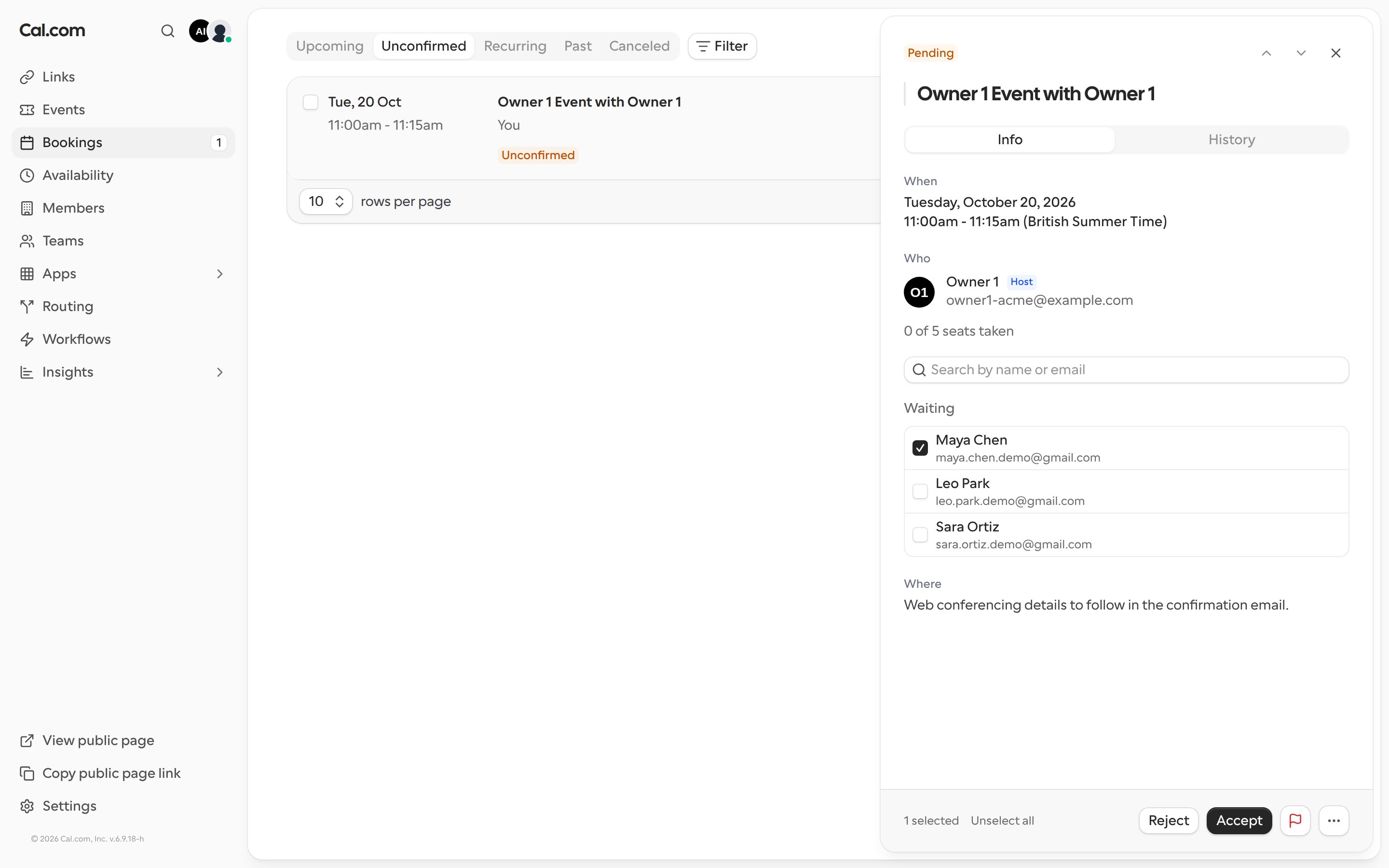
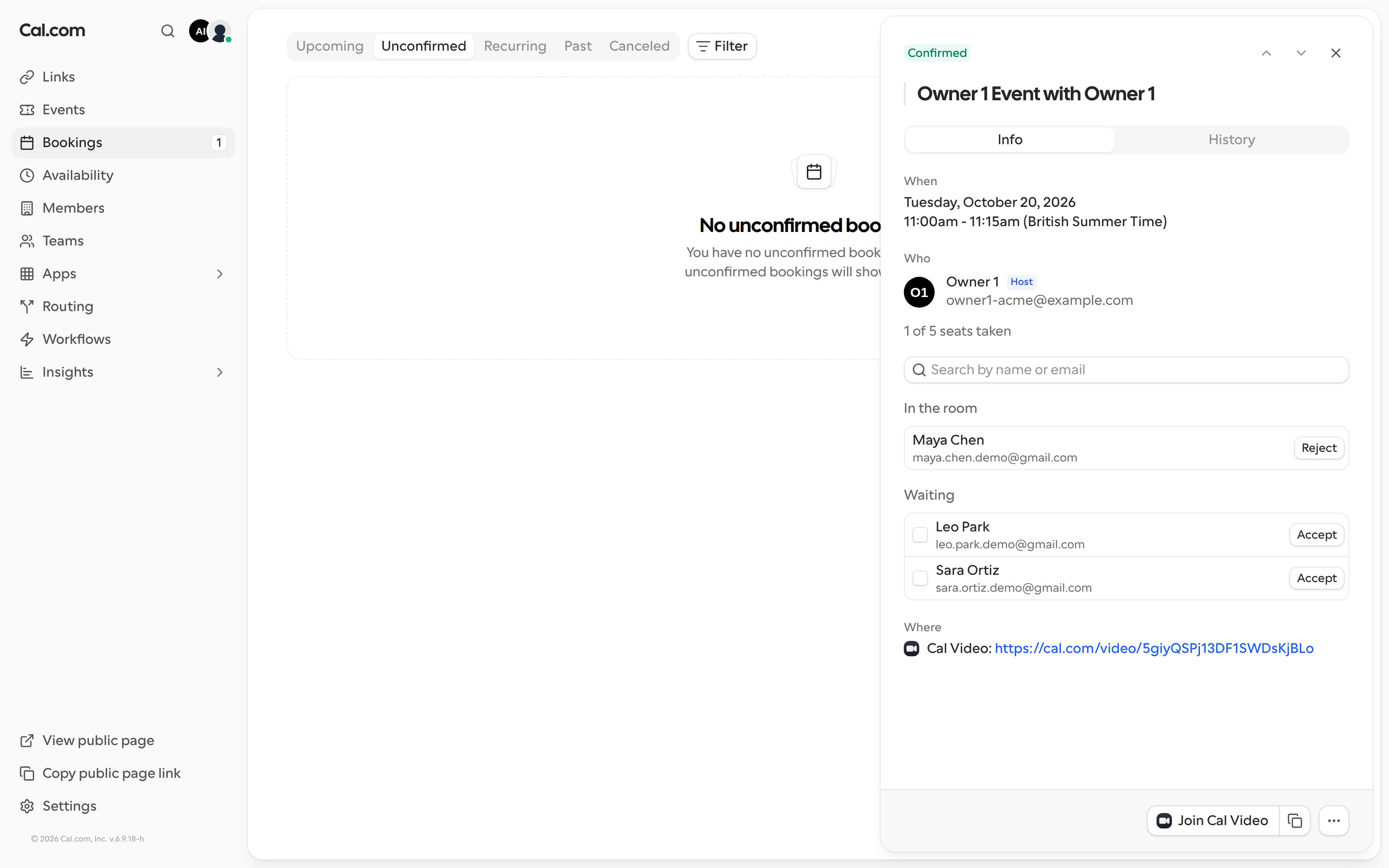
- You can’t accept more people than the seats that are left. When the session is full, reject someone to free a seat.
- Use Search by name or email to find a specific attendee in a long list.
- Once you accept the first attendee, the session shows as confirmed. Anyone you haven’t decided on stays under Waiting.
- The seat list is only shown to people who can confirm bookings for this link, and only until the session has ended.